
Images
Reference gallery of CCE's user interface screens.
Images
This page is a visual index of the screens you'll encounter while installing, configuring, and using CCE. Each image links to the section that explains it.
PDFCreator Save settings — the values CCE needs
The single most important configuration screen. Set this exactly once, right after install.
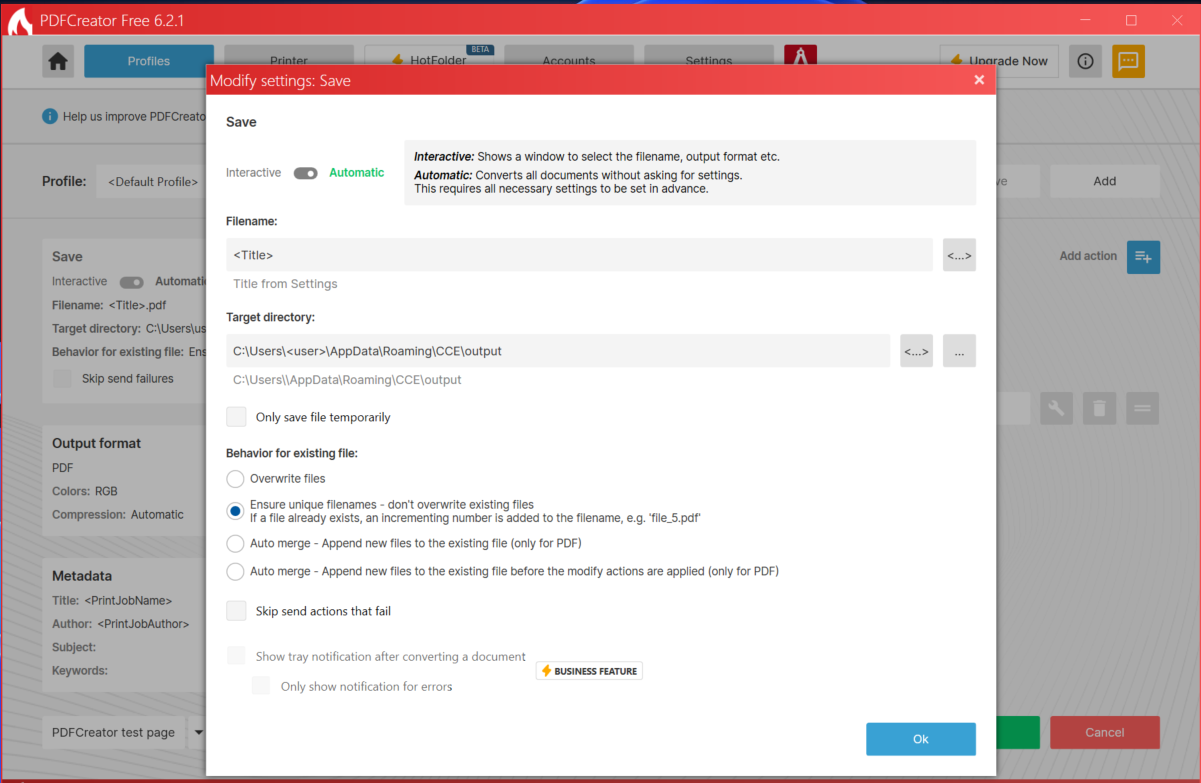
| Field | Required value |
|---|---|
| Interactive / Automatic | Automatic |
| Filename | <Title> |
| Target directory | C:\Users\<USERNAME>\AppData\Roaming\CCE\output |
| Behavior for existing file | Ensure unique filenames |
See Quickstart Step 2.
CCE tray icon
After install, CCE appears in your system tray. If hidden behind the ^ overflow arrow, click ^ to find it. Right-click for View Report, Settings, or Exit.
See Components — CCE.exe.
Screenshot coming soon: images/tray-icon.png
Welcome notification
Fires once on first launch. "CCE is running. Right-click the tray icon for options."
Screenshot coming soon: images/welcome-notification.png
CCE Installer — Welcome screen
The first screen of CCE_Setup_X.Y.Z.exe. Accepts the EULA and lets
you pick the install location. See Installation.
Screenshot coming soon: images/installer-welcome.png
CCE Installer — PDFCreator install progress
A ~30-second pause during install while PDFCreator's bundled installer runs silently. The progress bar will look frozen. This is normal.
Screenshot coming soon: images/installer-pdfcreator-progress.png
View Report — savings dashboard
Opens via tray icon → View Report. Shows this-month and all-time $ saved, pages converted, jobs processed, plus a list of recent jobs. The ⚙ Set Cost per Page button is where you tell CCE what your print shop charges.
See Components — View Report window.
Screenshot coming soon: images/report-window.png
Cost per Page dialog
Two inputs: colored page cost, B&W page cost. CCE uses these to compute the $ saved on every new job.
See Components — Cost per Page dialog.
Screenshot coming soon: images/cost-per-page-dialog.png
Settings dialog
Forwarding mode (Preview vs Print), target printer, advanced engine controls.
See Components — Settings dialog.
Screenshot coming soon: images/settings-dialog.png